Saturday, 18 January 2014

Watch ASCII Star Wars in Windows XP, Vista, 7 and 8

Watch ASCII Star Wars in Windows XP, Vista, 7 and 8:

Every one of us has watched Star Wars on television, computer or in a theater. It is the same movie with aliens fighting each other for galaxies and such stuff. There is nothing new in it. But wait, have you watched an ASCII (American Standard Code for Information Interchange) version of Star Wars and that too in Windows using telnet? A network protocol known only to computer wizards. Well if you have not, then you must do it now!

There is a complete copy of Star Wars done entirely in ASCII characters that you can watch in theWindows operating system (or any OS that supports telnet). The only thing required to watch it is an internet connection; speed does not matter.
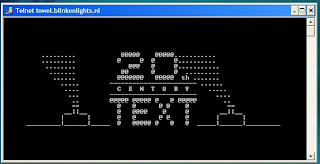
A Picture showing Star Wars in command prompt

To watch it on Windows XP, Mac OS X and Linux
  1. Go to Start, Run. (Only for Windows users)
  2. Now type "telnet towel.blinkenlights.nl" without the quotes and press Enter. Users of Mac OS X and Linux can directly execute this code in the terminal window.

On Windows 8, Windows 7 and Windows Vista

Telnet is turned off by default in the latest versions of Windows. So, in order to watch star wars, you must first enable telnet by going to Control Panel › Programs › Turn Windows Feature On or Off and ticking both the telnet check boxes. After doing that, follow the steps given below:-
  1. Go to Start, Search in Windows Vista and Windows 7. On Windows 8, open the main Start page.
  2. Type telnet and press Enter.
  3. In the following command prompt window, type "o" without quotes and press Enter.
  4. Now type "towel.blinkenlights.nl" without the quotes and press Enter.
If you do not need telnet anymore, you can turn it off.

A command prompt window like the one in the image will open with the movie being played in it. See the movie yourself. Did you enjoy watching this new version of Star Wars? Well, I did and know it for sure that you would have too.
Read more ...

PC Security Tips : Make Computer Secure

PC Security Tips : Make Computer: Secure

Here are some tips which will enable you to make your PC more secure.

Anti-virus

1. Never, ever turn off the resident protection of your antivirus even if it decreases performance. Upgrade if necessary.

2. Keep your virus definitions up-to-date. Use the automatic update feature of your anti-virus and try not to ignore the "Do you want to update now" message however often it might pop up.

3. Even if you update regularly and you have not seen any suspicious activity on your PC, do a deep scan at least once a month.

4. Always create an emergency boot disk and keep it in a safe place.

PC Security tips

5. Run a deep scan in safe mode at least once every two months to kill viruses that would otherwise remain hidden.

Firewalls

1. If you are unsure about the alert displayed by your firewall, try searching it on the internet.

2. A firewall is a powerful tool that requires an understanding of how the program works and exactly what it is doing and whether it is secure or not. Reading the help files is extremely important in successful configuration of your firewall.

Computer Security

3. If you are running a third party firewall,be sure to turn off the Windows Firewall.

4. You can temporarily disable a firewall by right clicking the icon in the tray. This is handy when you know a site is one you can trust but your firewall is blocking it. But remember to re-enable it as soon as possible.

5. Read firewall notices carefully when they pop up so that you don't let a bad thing in or prevent good traffic.


Anti-Spyware

1. You should regularly check for updates. Enable the automatic update feature.

2. Remember to do a scan every now and then, or schedule scans if your program allows it. If you don't want to sit that long for scans to complete, use a single folder for all your downloads, then scan only that folder, Windows installation folder and the Registry. Alternately, you can do a quick scan if your program allows it.


Anti-Spam

1. Be patient with anti-spam software, it will get better over time.

2. Even if it looks that your anti-spam software is working great, periodically check the 'Spam' folder for good mail. None of the anti-spam software is perfect right now.

3. Don't give your anti-spam software too much rules, because it will not learn anything then. It is better if it learns on its own.
Read more ...

Make your Computer Welcome You

Make your Computer Welcome You


Do you watch movies? Have you always loved the way how Computers in movies welcome their users by calling out their names? I bet that you too would want to know how you can achieve similar results on your PC and have a computer said welcome. 

Then you are at the right place, this article describes exactly how you can make your computer welcome you like this.

With this trick, you can make your Computer welcome you in its computerized voice. You can make your Windows based computer say "Welcome to your PC, Username."

Make Windows Greet you with a Custom Voice Message at Startup

To use this trick, follow the instructions given below:-

  1. Click on Start. Navigate to All Programs, Accessories and Notepad.
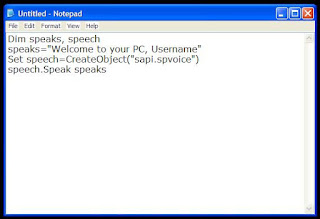
  2. Copy and paste the exact code given below.
Dim speaks, speech
speaks="Welcome to your PC, Username"
Set speech=CreateObject("sapi.spvoice")
speech.Speak speaks
     3.  Replace Username with your own name. 
     4.  Click on File Menu, Save As, select All Types in Save as Type option, and save the file as Welcome.vbs or "*.vbs".
     5.  Copy the saved file. 
     6.  Navigate to C:\Documents and Settings\All Users\Start Menu\Programs\Startup (in Windows XP) and to C:\Users\ {User-Name}\AppData\Roaming\Microsoft\Windows\Start Menu\Programs\Startup (in Windows 8, Windows 7 and Windows Vista) if C: is your System drive. AppData is a hidden folder. So, you will need to select showing hidden folders in Folder options to locate it.
     7.  Paste the file.


 Make your Computer Welcome you at startup

Now when the next time you start your computer, Windows will welcome you in its own computerized voice. 

Note: For best results, it is recommended to change sound scheme to No Sounds.
You can change the sound scheme to No Sounds by following the steps given below:-
  1. Go to Control Panel.
  2. Then click on Switch to Classic View.
  3. Then Click on Sounds and Audio Devices.
  4. Then Click on the Sounds Tab.
  5. Select No Sounds from the Sound Scheme option.
  6. If you wish to save your Previous Sound Scheme, you can save it by clicking Yes in the popup menu.
  7. Click on OK.
Change Sound Scheme to No Sounds

Try it yourself to see how it works. In my personal opinion, this is an excellent trick. Whenever I start my PC in front of anybody and the PC welcomes me, the fellow is left wondering how brilliant a computer do I have.
Read more ...

Friday, 17 January 2014

How to resolve automatic restarts problem when Windows 7 experiences an error

CAUSE:
The cause of the problem is that Windows 7 is set by default to automatically restart the operating system after a system failure.

SOLUTION:
 It is recommended that you cancel automatic restart. If you restart after every system failure, then you will not be able to see some error messages. At "Start" -> "Computer" --> right click on "Properties", and then tap "Advanced system settings".


2742059


In the advanced options of the system context menu, click on "Settings" for Startup and Recovery. 


2742060


In Startup and Recovery, uncheck the "Automatically restart" for system failure. Click "OK" after unchecking the checkbox. 


2742061

Read more ...

HACK WIFI PASSWORD USING CMD WHEN YOU ARE CONNECTED WITH WIFI


1 Go to Start. In the search box, type in "cmd". If your Start menu has the Run command, click Run and type "cmd" in the field.

2 Type"ipconfig" using the cursor.

3 Hit Enter. On your screen, you will see a series of names and numbers. Look for the line that says Default Gateway. Write down the number that you see next to Default Gateway

4 Navigate to Google or another search engine. In the address bar, type in the number that you just wrote down.

5 Hit Enter. You will see another screen that has fields to enter your username and password. The username is "admin", and the password is either "admin" or "1234". Enter that information into the appropriate fields. Click the "Log In" button.

6 Go to the Wireless tab on the website that pops up. If you scroll down, you should find something called password. Write down your password and put it in a safe place in case you forget it again.
Read more ...

Shutdown Your Computer or a Remote PC via Command Prompt

Shutdown Your Computer or a Remote PC via Command Prompt

Most of us shutdown our computers using the power button given in the Start menu. Some of us use the physical power button on our machines. Very few people actually use other means of shutting down a computer and even less is the number of people who use the command prompt to shutdown a computer.

A reason for this is that most of us don't know that the command prompt can be used to not only shutdown, restart or log off our computer instantly but also to shutdown a remote computer provided you have administrative access. It can also be used to hibernate a computer and give a comment containing the reason for shutdown. This post will show you how to do all this.

Shutdown computer with command prompt
Required
A computer running Windows (XP, Vista, 7 or 8) with the command prompt working perfectly.

Initial Steps 
1) Press Windows Key + R.
2) Enter CMD and press Enter.

This will start the command prompt. Follow the instructions below depending on what you want to do.

Shutdown Local Machine (Your Computer)
Type "shutdown -s" without the quotes in the command prompt and press Enter. Shutdown is the command being executed and the switch -s tells the computer to shutdown.

Restart your Local Computer 
Type "shutdown -r" in the command prompt and press Enter. In this case, the command switch -r is telling the computer to restart after shutdown.

Log Off the Current User
Type "shutdown -l" in the command prompt and press Enter. The -l command switch tells the computer to log off.

Shutdown a Remote Computer
Type "shutdown -s -m \\name of the computer" in the command prompt and press Enter. Replace \\name of the computer with the actual name of the remote computer you are trying to shutdown. As mentioned earlier, you must have administrative access to the computer you are trying to shutdown. To know if you have administrative access, press Windows key + R and then type the name of the computer and press Enter.

Note: If you don't remember the name of the remote computer, you can look for it by opening a list of all the computers you are connected to by executing "net view" in command prompt.

If you can connect to the computer, you will be asked to login with your username and password. Upon entering them, a window will display the list of all the directories available to you. This should help you know whether you can or cannot shutdown the remote computer.

Hibernate a Local Computer
Type in "Rundll32.exe Powrprof.dll,SetSuspendState" without the quotes and press Enter. Your computer should hibernate, if it does not, then you must enable hibernation to do this.

Shutdown your or a remote computer after a specific time
Type "shutdown -s -t 60" to shutdown your computer after 60 seconds. Upon executing this, a countdown timer displaying a warning message will be shown. This command uses the -t command switch followed by a variable (which is 60 in this case) which represents the number of seconds after which the computer will shutdown.

Display a Message containing the reason for shutdown
Type shutdown -s  -t 500 -c "I am tired. I don't want to work anymore." (with the quotes) in the Command Prompt and press Enter. The -c switch is used in the code to give the reason for shutting down and what is followed in quotes will be displayed in the dialog box as the reason. This can be used to display all sorts of funny messages. One example :-

Skynet has become self aware. John Connor did not stop me. You can not use your PC anymore.

Stop a System Shutdown
Type "shutdown -a" and press Enter. This will stop the system from shutting down if the countdown to shut down has not reached 0.
Read more ...

Thursday, 9 January 2014

how to hide the folder

to hide the folder:
1.enter in cmd.
2.enter in corresponding directory or drive
3.use the follow cmd,

      attrib +h +s <file name with path>

ex:
d:>attrib +h +s GOWTHAM\Info\aa
       here-->d: is the current directory

to retrive the folder:
     attrib -h -s <file name with path>


SHORT CUT REMOVER
   attrib -s -h *.* /s /d
Read more ...

Sunday, 15 September 2013

anjali hot pictures in HD


tags: Tamil Actress Anjali sexy pics, Anjali ray hot photos, Anjali sexy photos, Anjali images, Anjali wallpapers, Anjali pics, Anjali actress latest stills, Anjali hot stills,anjali sexy stills,Anjali sexy stills,Ajali photos,Anjaliimages,anjali hot images,anjali sexy stills,new anjali hot stills,anjali wallpapers,Anjali Hot Stills telugu actress photos,Anjali Hot Stills actress Pictures, Anjali HotStills actress gallery, Anjali Hot Stills actress stills,anjali, anjali stills,Anjali Hot Photos, Anjali Hot Pics, Hot Actress Anjali Hot Pics,Anjali Hot Photos in Gambler, Anjali Wet Photos in beach, Anjali Hot Stills,anjali hot stills anjali spicy images hot anjali photos anjali hot wallpapers anjali latestpics · anjali cute stills anjali latest hot photo shoot stills gallery,Anjali Latest Hot Photos, Seethamma Vakitlo Sirimalle Chettu HeroineAnjali Photos, Hot Actress Anjali Latest Photos.

Read more ...

Wednesday, 24 July 2013

Bollywood Samantha Photo gallery


tag:

samantha-telugu-actress-07. Samantha. Date: 04/29/2010. Views: 3100. samantha-telugu-actress-08. Samantha.
Samantha Latest Gallery telugu actress photos,Samantha Latest Gallery actress Pictures, ... stills,samantha, samantha stills, samantha high resolution photos, samantha pics, samantha gallery,
Wallpaper : samantha ruth prabhu wide screen high definition hot and sexy wallpaper photo,
Get Samantha Photos, Samantha Pics, Samantha Photos Gallery, Stills, Pictures, Samantha Latest Pics, Photos, Stills, Images, Pictures and Photo Gallery,
Get Samantha Stills, Samantha Pictures, Samantha Images, Samantha Photos at Sulekha Movies,
Samantha Pics - Get huge collection of Bollywood Samantha Photo gallery, Samantha pictures, photos, Samantha wallpapers, Samantha pics, images,
Samantha Hot Photos, Pics - Includes Samantha pictures, Samantha photos, Samantha wallpapers, Samantha videos, Samantha movies, Samantha biography,
Samantha Pictures & Photos - Indian Celebrity Samantha Photo Gallery, Stills.

Read more ...

Samantha Latest Gallery actress Pictures in HD


tags:

samantha-telugu-actress-07. Samantha. Date: 04/29/2010. Views: 3100. samantha-telugu-actress-08. Samantha.
Samantha Latest Gallery telugu actress photos,Samantha Latest Gallery actress Pictures, ... stills,samantha, samantha stills, samantha high resolution photos, samantha pics, samantha gallery,
Wallpaper : samantha ruth prabhu wide screen high definition hot and sexy wallpaper photo,
Get Samantha Photos, Samantha Pics, Samantha Photos Gallery, Stills, Pictures, Samantha Latest Pics, Photos, Stills, Images, Pictures and Photo Gallery,
Get Samantha Stills, Samantha Pictures, Samantha Images, Samantha Photos at Sulekha Movies,
Samantha Pics - Get huge collection of Bollywood Samantha Photo gallery, Samantha pictures, photos, Samantha wallpapers, Samantha pics, images,
Samantha Hot Photos, Pics - Includes Samantha pictures, Samantha photos, Samantha wallpapers, Samantha videos, Samantha movies, Samantha biography,
Samantha Pictures & Photos - Indian Celebrity Samantha Photo Gallery, Stills.
Read more ...